Guides
Part of Scrolling habits and attention: a practical guide
How to reset a scrolling habit without abandoning your phone
Reset a scrolling habit by defining a problem, logging cues, changing notifications and access, adding stopping points, testing replacements, and reviewing results.
What to take away
- Define the unwanted consequence before choosing a restriction.
- Observe cues for several days so the plan targets the real entry points.
- Reduce interruption at the notification level, not only through willpower after the app opens.
- Add a stopping rule and a replacement for the moment the scroll usually fills.
- Review sleep, task completion, mood, and chosen use, not minutes alone.
A reset is a short experiment that makes phone use more deliberate. It does not require a total digital fast, a new identity, or a claim that every app is harmful.
Pick one practical goal: finish a work block without feed checks, protect the last hour before sleep, stop unplanned shopping scrolls, or reduce upsetting news repetition. The narrower the goal, the clearer the test. The scrolling-and-attention guide explains the cue-action-reward loop this experiment interrupts.
1. Write the target behavior
Use a sentence with a cue, action, and cost. For example: "When a group alert appears during writing, I open the phone, enter two feeds, and lose the thread of the paragraph."
Avoid "I use my phone too much." It gives no signal for when to act or how to judge improvement.
2. Log three ordinary days
Record the first ten unplanned openings each day:
| Field | What to capture |
|---|
Three-Day Log Fields
- Time and place2:20 p.m., desk
- Cuesound, badge, pause, feeling
- Intended actioncheck one message
- Actual pathmessage, feed, video, store
- Duration17 minutes
- Original taskinvoice review
Capture these fields for each opening:
- Time of day and where you were.
- What you were doing in the moment before.
- What you felt or wanted (bored, stuck, anxious, avoiding a task).
- Whether an alert arrived, and from which app.
- The app you opened and what pulled you in.
- How long the session ran.
- How you felt when you stopped.
Use device records where helpful, but note that they may group background use, web use, and active viewing differently.
Photo and credit
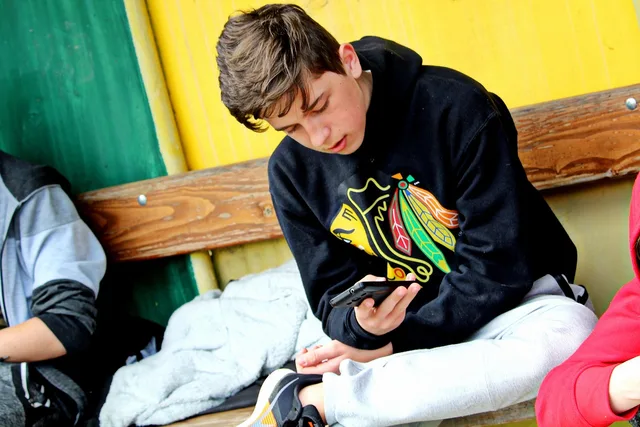
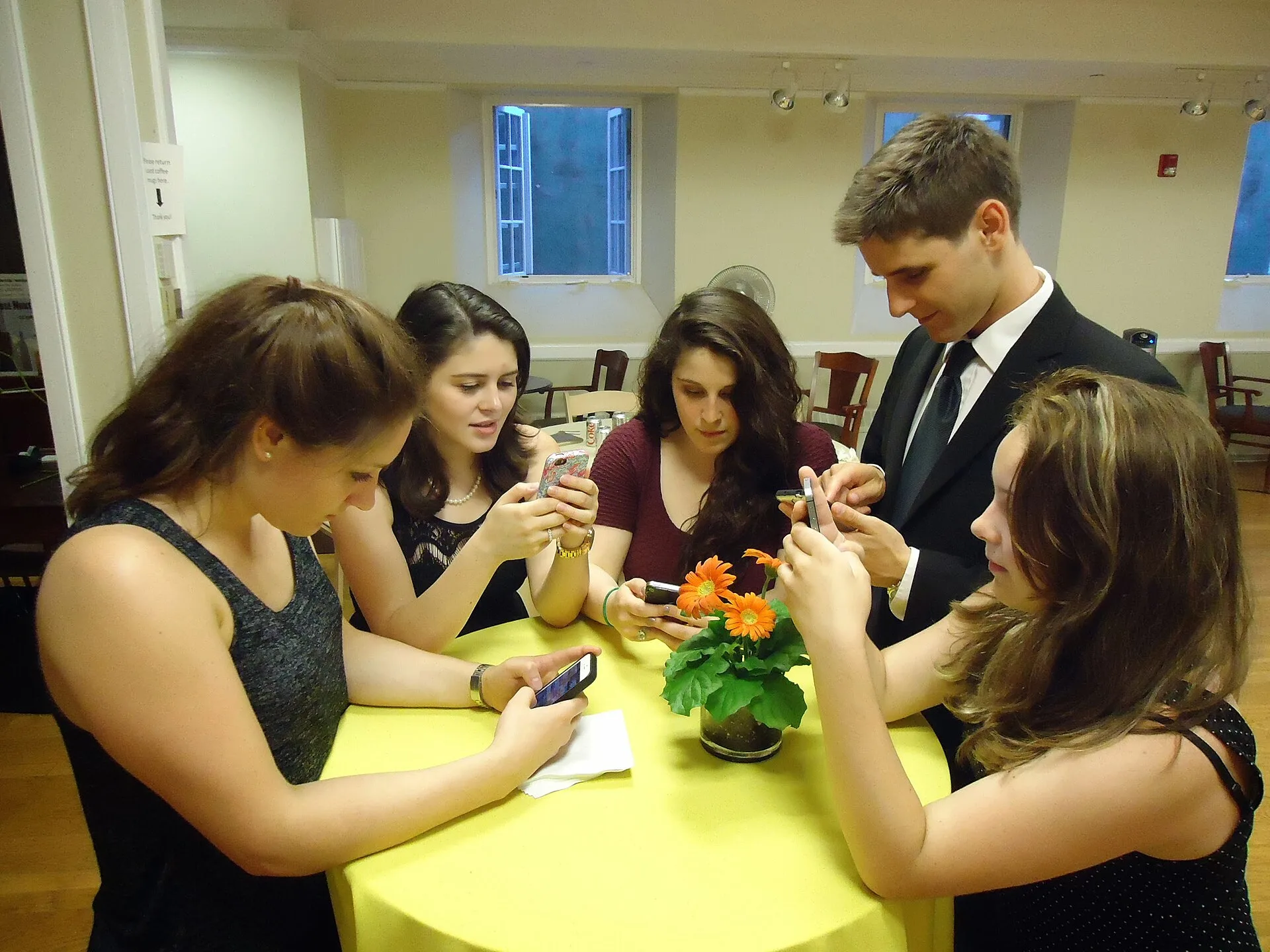
The image documents phone use but cannot show the app, purpose, duration, attention level, or effect on the person's day.
A visible device can also act as a cue while silent, so record its placement alongside incoming alerts.
3. Sort notifications by job
Create four groups:
Notification Triage by Job
Keep immediate
- Person-to-person
- Yes
- Scheduled reminders
- Yes
- Service updates
- No
- Promotions, streaks
- No
Deliver quietly
- Person-to-person
- No
- Scheduled reminders
- No
- Service updates
- Yes
- Promotions, streaks
- No
Turn off
- Person-to-person
- No
- Scheduled reminders
- No
- Service updates
- No
- Promotions, streaks
- Yes
Sort every alert into one of four groups:
- Urgent and personal
- a message from someone who needs an answer now.
- Time-bound logistics
- a reminder, a delivery or ride update, a calendar change.
- Routine social and news
- group chats, feeds, newsletters, subscriptions.
- Promotional and engagement prompts
- sales, streaks, and "come back" nudges.
Keep only the first two as immediate alerts during focus periods. Deliver nonurgent items quietly or in a summary. Turn off the final group unless it supports a chosen task.
Notifications can affect a task even without a reply. A PubMed-indexed experiment on the attentional cost of cell phone notifications reported disruption on an attention-demanding task when participants received call or text alerts without directly interacting with the phone. That laboratory finding supports testing fewer alerts; it does not quantify the effect in every workplace or for every notification.
4. Add friction at entry
Remove high-cue apps from the first screen, log out after use, disable automatic sign-in, or use the web version. Keep tools you need visible. The goal is not to make the phone useless; it is to insert one moment in which purpose can return.
Built-in tools can hold the friction in place: iOS Screen Time limits and Downtime, Android Digital Wellbeing app timers and Focus mode, and Do Not Disturb or a Focus mode that lets through only the first two notification groups. Set the timer for the app that carries the cue, not for the phone as a whole.
Create a direct route for necessary tasks. A bookmark to a specific inbox or saved document can avoid the home feed. Keeping essentials split from discovery is the feed-side version of the same move.
5. Define the session before opening
Choose one of these rules:
Five Session Rules
- Task rulereply to three messages, then close
- Time rulebrowse ten minutes, stop at alarm
- Item ruleread five saved posts, then exit
- Location rulefeeds in one chair, not bed
- Window ruletwo planned feed checks daily
Pick one rule and keep it for the whole week:
- One passopen the app, read to the end of the current screen once, and close it.
- Time boxset a timer before opening and stop when it sounds.
- Single purposename the task out loud (reply to one message, check one order) and leave when it is done.
- Count limitallow a fixed number of posts, items, or videos, then stop.
- One app onlyopen the app you came for and skip the others.
An alarm works only if it triggers an action. Pair it with "close the app, lock the screen, and put the phone on the shelf." Automating the boundary works for creator alerts too: renewal off, stored cards out, alerts windowed.
6. Build a visible stopping point
Continuous feeds hide endings. Supply your own: a paper note across the charging spot, a timer, a fixed playlist, a cup of tea, or a written session card. Stop after the defined unit even if the feed offers a strong next item.
Save useful material for a later reading block rather than following every branch now.
7. Replace the function
Ask what the scroll provides at that moment.
Scroll Function Replacements
Function
- Transition
- Stand, stretch, water
- Social contact
- Send one direct message
- News check
- Read one chosen briefing
- Anxiety relief
- Slow breathing or walk
- Hard start
- Five minutes, smallest step
- Entertainment
- One saved episode or article
Short replacement
- Transition
- Social contact
- News check
- Anxiety relief
- Hard start
- Entertainment
Replace the function
| Function | Short replacement |
|---|---|
| Transition between tasks | Stand, stretch, refill water |
| Social contact | Send one direct message |
| News check | Read one chosen briefing |
| Anxiety relief | Slow breathing or brief walk |
| Avoiding a hard start | Work for five minutes on the smallest step |
| Entertainment | Choose one saved episode or article |
The other common functions pair the same way:
- Relief from boredomstand up, step outside, or finish one small physical task.
- Anxiety or uncertaintywrite the worry down or message the person involved.
- Reward after efforttake a real break with a drink, a stretch, or a few minutes of music.
A replacement should be easy enough to use when the cue appears. For a scroll that orbits one creator, the boundary-plan case shows the same replace-and-review structure over four weeks.
8. Protect sleep separately
Set a device parking time, charge it outside reach, silence nonurgent contacts, and prepare an offline alarm if needed.
The CDC's sleep habits list includes turning off electronics at least 30 minutes before bed, consistent times, and a quiet, cool room. If insomnia, pain, shift work, caregiving, or anxiety drives nighttime use, the scrolling rule may address only one part.
9. Review after seven days
Compare:
Seven-Day Review Metrics
- Unplanned openings
- Uninterrupted work blocks
- Bedtime and wake time
- Chosen versus accidental sessions
- Mood after use
- Tasks completed
Compare six things across the week:
- Whether the target behavior from step 1 still happened.
- When you went to bed and how rested you felt.
- What you finished on your task list.
- Your mood in the evening.
- Time spent in the apps you actually chose to use.
- How often the unplanned openings from your log still happened.
Keep the changes that affected the chosen outcome. Remove restrictions that created workarounds without benefit. Test a second change only after the first result is understandable.
Common questions
How long should a scrolling reset last?
Seven days can reveal cues and feasibility. Longer follow-up shows whether the change fits normal life.
Should I turn off every notification?
No. Keep alerts that serve genuine urgent or chosen functions. Silence promotional and nonurgent cues during protected periods.
Do app timers work?
They can create a pause. Their value depends on whether you follow the stopping action and whether the limit targets the real cue.
What if I override the limit?
Record why. The rule may be too vague, the replacement may be weak, or the underlying task may need attention.
Is grayscale necessary?
No. It is one optional cue change. Test whether it affects your behavior rather than assuming it will.
What if scrolling is the only thing that helps me cope?
Keep safety in view and add human or professional support suited to the underlying problem. A habit reset should not remove the only coping tool without replacement.