Maintenance
Part of Digital wellbeing and boundaries: a practical guide
Digital boundaries checklist for work, home, privacy, and safety
Digital boundaries checklist for response times, notifications, work, sleep, posting consent, privacy, account security, unwanted contact, urgent routes, and review.
What to take away
- Complete the checklist for one role or setting at a time.
- Keep an urgent route separate from routine availability.
- Posting consent, location sharing, and account security are boundary issues as well as privacy issues.
- Blocking and muting are not substitutes for a safety plan when danger is present.
- Review rules after a schedule, role, device, relationship, or risk changes.
This digital boundaries checklist helps turn a general intention into visible choices. Use the sections that fit. A personal plan, household agreement, and workplace rule may need different owners and exceptions.
Most defaults work against the plan: read receipts, presence dots, autoplay, and streak counters are built to keep you reachable and scrolling, so a boundary usually means changing a setting the platform chose for you.
Availability
Availability
- Write normal response hours for work, friends, family, customers, or community roles.
- Name one urgent route and define what belongs there.
- Set an out-of-hours status or reply where expectations need correction.
- Remove read receipts or presence indicators if they create unwanted pressure and the service permits it; the switches sit in iMessage (Settings > Messages > Send Read Receipts), WhatsApp (Settings > Privacy > Read receipts, and Last seen and online), and Instagram (Settings > Messages and story replies).
- Use Do Not Disturb or a Focus mode on iOS, or Bedtime mode in Android Digital Wellbeing, so routine messages wait while the urgent route stays open.
- Tell affected people before changing a long-standing routine.
Notifications
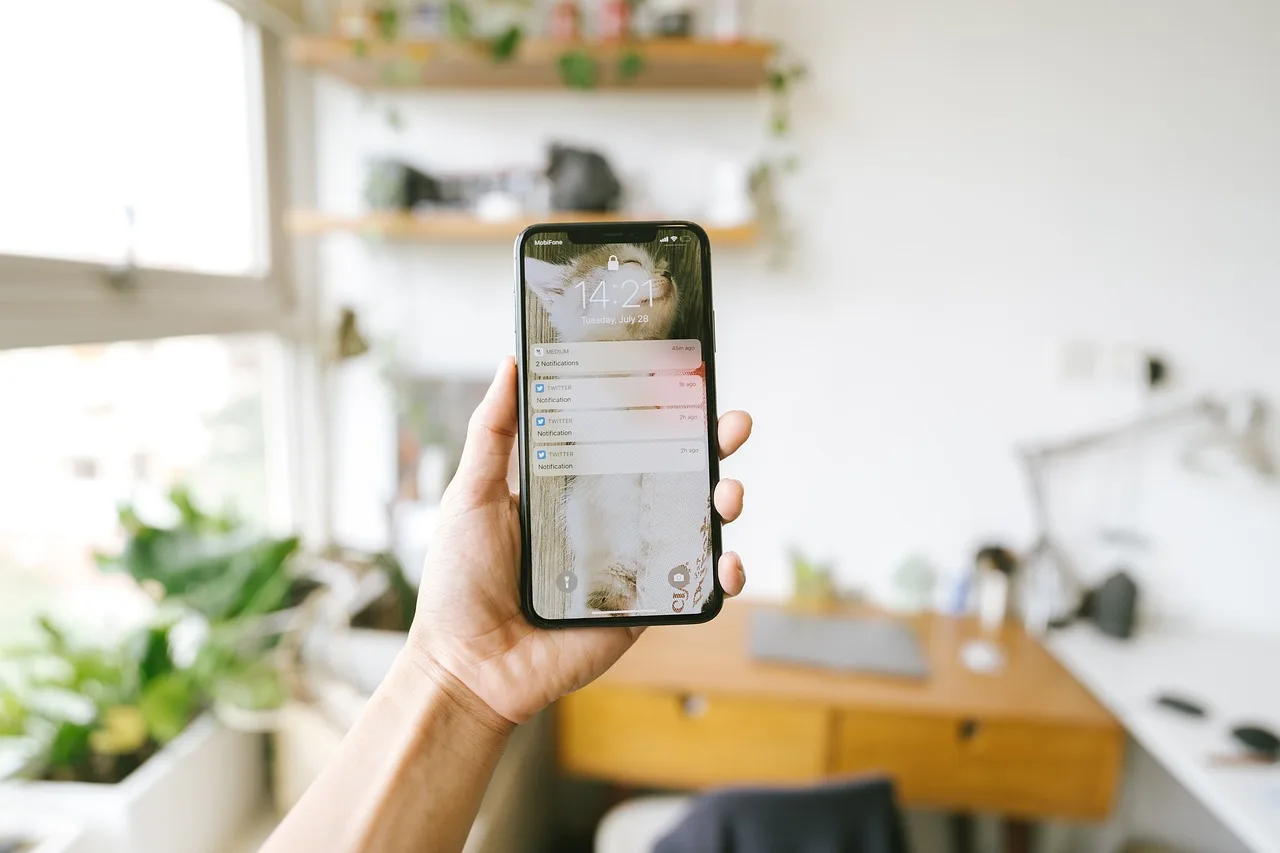
Notifications
- List alerts that protect safety, access, caregiving, or scheduled commitments.
- Turn off promotional, duplicate, and low-priority alerts in each app's own settings and in iOS Notifications or Android Settings > Notifications.
- Group routine alerts for a chosen check time with iOS Scheduled Summary or Android notification channels.
- Limit the loudest apps with iOS Screen Time (App Limits and Downtime) or Android Digital Wellbeing (app timers and Focus mode); desktop blockers such as Freedom do the same for a computer.
- Test allowed contacts during quiet or focus settings.
- Review alerts after installing a new app.
Mute, restrict, and block are different tools: muting hides someone's content without telling them, restricting limits what they can see or send, and blocking ends contact. Pick the lightest one that solves the problem; boundary tools compared sorts mute, limits, blocks, and distance by behavior.
Tame Notifications
- List safety and care alerts
- Turn off promotional alerts
- Group routine alerts for check time
- Test allowed contacts in quiet mode
- Review alerts after new app
Work and study
Work and study
- Separate duty hours from optional checking.
- Define the channel for a true escalation.
- Close work apps and files at a named stopping time.
- Quiet the work tools off hoursSlack's do-not-disturb schedule (Preferences > Notifications), Microsoft Teams quiet hours and status, or a work Focus on iOS or Android.
- Use a focus period for one chosen task.
- Record workload or accessibility needs that settings cannot solve.
- Raise unclear response expectations with the person who owns the policy.
Sleep and rest
- Choose a device parking or charging place.
- Set the quiet period and wake exception.
- Replace any needed alarm, reading, or audio function.
- Keep emergency, health, or caregiving access available as required.
- Record sleep timing or interruptions if sleep is the target outcome.
Posting consent and privacy
Posting consent and privacy
- Ask before posting another person's image, story, location, or private message.
- Confirm who can view each account, album, group, and live location: Instagram's Who can see your content settings, Facebook's audience selector and Friends lists, Snapchat's Ghost Mode, and private account or Close Friends options elsewhere.
- Turn off location sharing you are not usingShare My Location in Find My, Google Maps location sharing, and per-app access under iOS Settings > Privacy & Security > Location Services or Android Settings > Location.
- Remove old app permissions that no longer serve a purpose.
- Avoid real-time location details when they create risk.
- Agree how children, guests, clients, and coworkers may appear online.
- Keep private records outside public or shared posting tools.
When one account serves clashing audiences, the structural fix is to split it: a personal and a work account separate followers, comments, and search results, at the cost of extra logins, duplicated posting, and two sets of settings to maintain. splitting accounts by role covers the tradeoffs.
Posting Consent and Privacy
- Ask before posting others' images or stories
- Confirm who can view each account
- Remove old app permissions
- Avoid real-time location details
- Agree how children and clients appear
- Keep private records outside shared tools
In the United States, the Federal Trade Commission and state attorneys general enforce consumer privacy and data-security rules, and California's CCPA, amended by the CPRA, gives California residents the right to know what personal information a business holds, to delete it, and to opt out of its sale or sharing. Requests go to the company's privacy contact or its published privacy request form.
Account security
Account security
- Use a unique password or passphrase for each account through a password manager such as 1Password, Bitwarden, or the built-in Apple Passwords and Google Password Manager.
- Turn on multifactor authentication where available, preferring an authenticator app or passkey (Google Authenticator, Authy, or your password manager) over texted codes when the service offers a choice.
- Protect recovery email, phone, codes, and devices.
- Review active sessions and connected apps in Google Account security, the Apple Account device list, and the Where you're logged in section of Facebook security settings.
- Remove access for former collaborators and old devices.
- Save a recovery route offline, such as backup codes printed and stored away from the device they unlock.
CISA's multifactor authentication tip sheet explains that MFA adds another login factor, such as a code or biometric, beyond a password. MFA improves account protection but does not decide who should receive personal updates or when someone may contact you.
Account recovery deserves its own boundary: decide who holds backup codes, which device approves a login, and how access ends when a shared role ends. Do not give a partner, manager, or household member credentials just because they need limited file or calendar permission.
Recovery-route failures are where boundary lapses become takeovers: whoever controls your recovery email or phone number can trigger a password reset on every account tied to it. Keep that inbox and number current and treat them as your highest-value credentials.
Content and contact
Content and contact
- Mute or unfollow material you do not want in routine feeds.
- Block or restrict unwanted contact where safe and appropriate.
- Preserve threatening or abusive material before it disappears when safe to do so, with screenshots that show the account name, the message, and the date.
- Use the platform's report route for rule-breaking content: the report option in the post or profile menu on Instagram, Facebook, X, or TikTok, the Report button inside a WhatsApp chat, and YouTube's report flag on a video or comment.
- Avoid asking friends to confront or mass-report someone.
- Escalate immediate danger through local emergency or specialist routes.
Australia's eSafety Commissioner provides strategies for negative online experiences that include setting boundaries and using block, mute, and report options. The resource is general guidance; the safest action in abuse or coercive control depends on the person's circumstances.
If you are in the United States, immediate danger goes to 911. The 988 Suicide & Crisis Lifeline takes calls and texts at 988. The National Domestic Violence Hotline is 1-800-799-7233 (text START to 88788), and Crisis Text Line answers texts to 741741. Report scams, fraud, and identity theft to the Federal Trade Commission, which publishes the identity theft recovery steps; state attorneys general take consumer-protection complaints against platforms and businesses.
Spending and subscriptions
Spending and subscriptions
- Require approval or authentication for purchases, through Apple's Ask to Buy and purchase authentication, Google Play's purchase authentication, or your card issuer's controls.
- Set a monthly amount for games, subscriptions, tips, and digital goods, put it in your card or bank app's spend controls, and check it against the subscription list.
- Review renewals and trial end dates.
- Keep creator support or community payments separate from private access expectations.
- Record refund and cancellation routesApple's Subscriptions page and Report a Problem form, Google Play's Subscriptions page in the Play Store app, and each service's own account or billing settings.
Creator-adjacent spending has its own failure mode; recognition purchases respond to payment friction and a 24-hour wait.
Shared plan
- Let affected people help identify the problem and propose the rule.
- Write the trigger, action, exception, and review date.
- Make age, role, disability, and duty differences explicit.
- Avoid secret surveillance as a substitute for conversation and safety planning.
- Decide how a person can report that the rule causes harm.
Review
Review
- Check whether the intended problem changed.
- Count missed emergencies or accessibility failures.
- Note overrides and the reason for each one.
- Keep, narrow, move, or stop the rule.
- Set the next review date, quarterly for most households and sooner after any role, device, or relationship change.
Common questions
Should routine contacts use the urgent route?
No. Define the route narrowly so urgent messages remain visible.
Is MFA a wellbeing tool?
It is a security control that can support privacy and reduce account-takeover risk, but it does not manage time or content.
Should evidence be saved before blocking abuse?
When it is safe, preserve the minimum useful record first because content may disappear. Immediate safety comes before documentation.
Can a household boundary use different exceptions?
Yes. Age, disability, work duty, caregiving, and safety may require different access.
How often should privacy settings be reviewed?
Review them after any app, device, relationship, role, or platform change, and on a set cadence — quarterly is a workable default.
What if a boundary causes more conflict?
Pause and revise the rule, clarify its purpose, and seek suitable support when power or safety concerns are present.